

Uploading Made Easy: Exploring Media Features in Payload CMS

Managing media files is a critical part of any modern content platform, and Payload CMS makes it easier than ever. In this article, we’ll take a closer look at how Payload handles file uploads and media management out of the box.
From configuring upload fields to organizing assets in collections, I’ll walk through the core features and show you how to seamlessly integrate media into your content workflows.
In this article, I'll be covering:
- What is the upload field?
- Why are upload fields important?
- How to use upload fields.
- Relationships to upload fields.
- Querying on upload fields.
Whether you're building a Headless CMS stack or just exploring Payload's capabilities, this guide will help you make the most of its powerful media tools.
What is the upload field?
If you've ever tried to build your own upload capable application, then you know how complex it can be. Let's find out how simple Payload CMS makes this process using their built-in upload field.
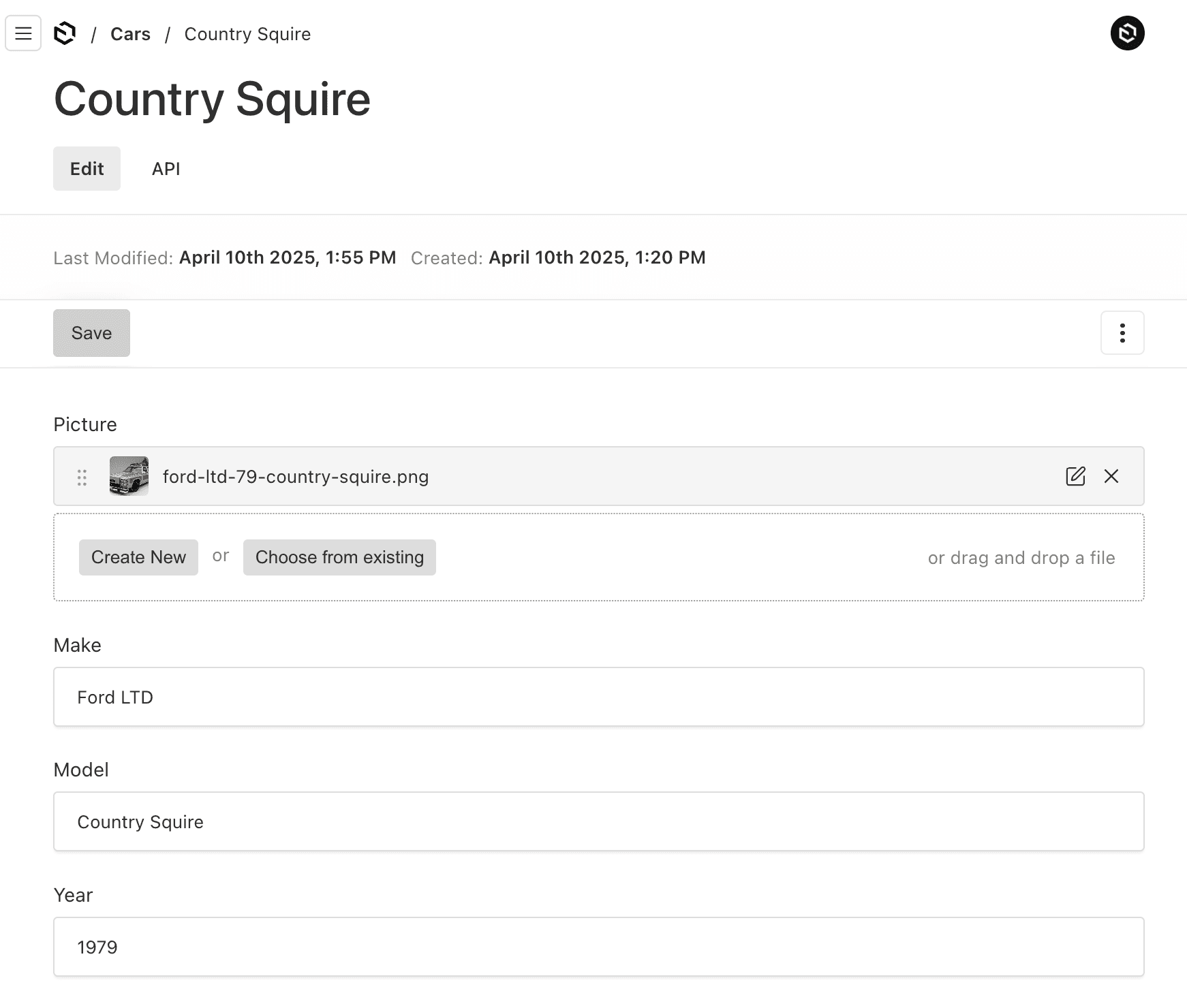
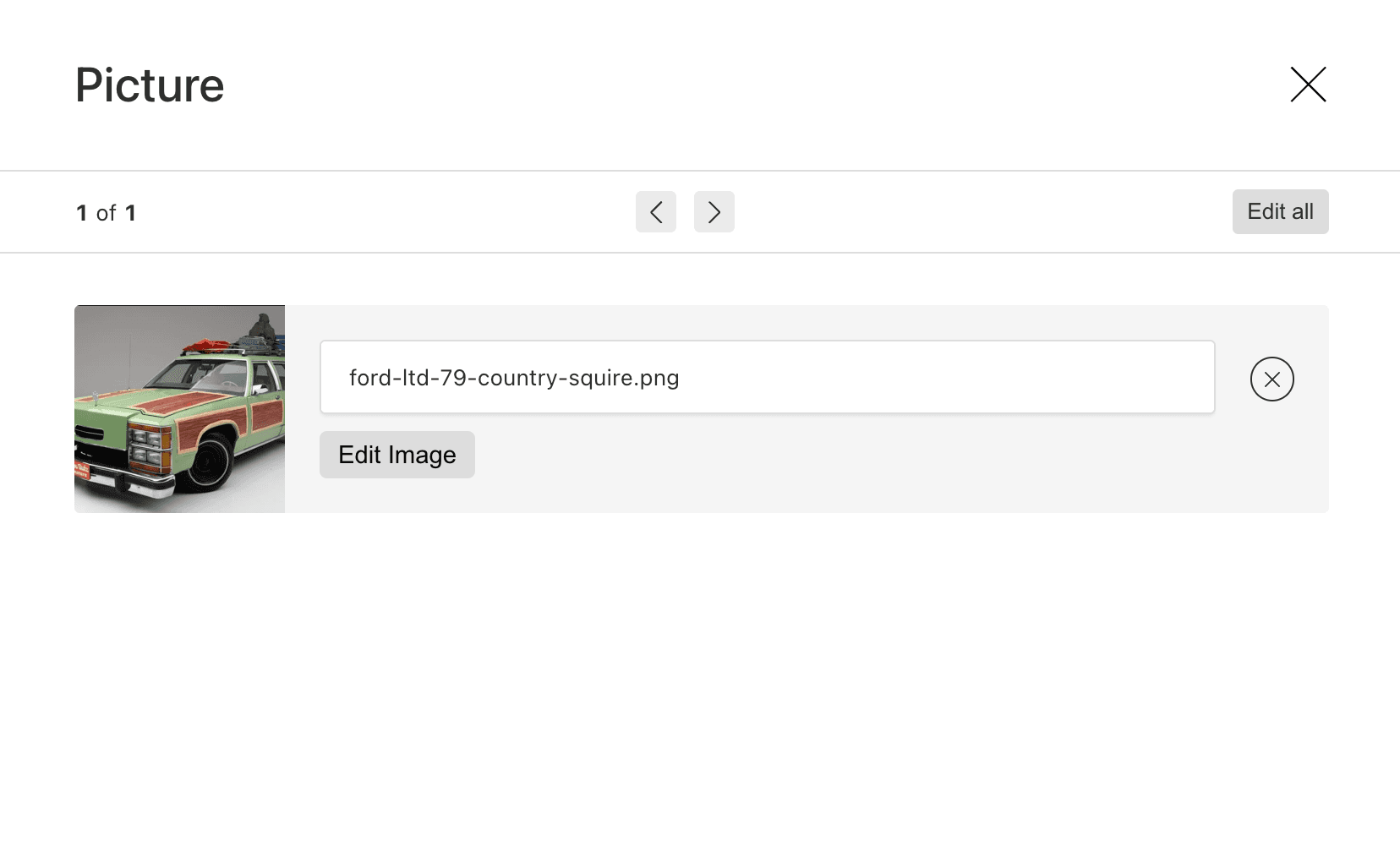
The upload field in Payload CMS can be added to any Collection to allow content authors to upload and attach files to a given Collection that is configured for upload support.
For example, by simply setting the upload field to true enables file upload support.
1import type { CollectionConfig } from 'payload';23export const MyPictures: CollectionConfig = {4 slug: 'mypictures',56 // indicates the Collection should support uploads7 upload: true,8};
Pretty easy right?
In order to upload and store our media files in the Collection, we can simply use the upload field and point to any Collection that has upload support set to true.
1export const Cars: CollectionConfig = {2 slug: 'somecollection',3 ...4 fields: [5 {6 name: 'pictures',7 type: 'upload',8 relationTo: 'mypictures',9 // indicates if multiple files can be uploaded10 hasMany: true,11 }12 ]13 ...
Why are upload fields important?
The upload field is probably one of the most important fields when building any Headless CMS application. With very little effort, it immediately provideds the following capabilities:
- Upload media files to any designated Collection.
- Can upload media files locally or to cloud using adapter plugins.
- Automatically creates consistent TypeScript interfaces.
- Easily manage uploaded content through the admin panel.
- Control access to content.
- Image resizing and dimensions for various devices.
Payload's media upload capabilities greatly streamline upload support and allows developers to focus on building apps rather than boilerplate infrastructure.
How to use upload fields
As we saw earlier in the examples, the upload support requires two things:
- A Collection marked with upload support.
- An upload field that points to the target upload destination using the
relationToproperty.
Defining an upload Collection
So let's take a look at a more realistic example.
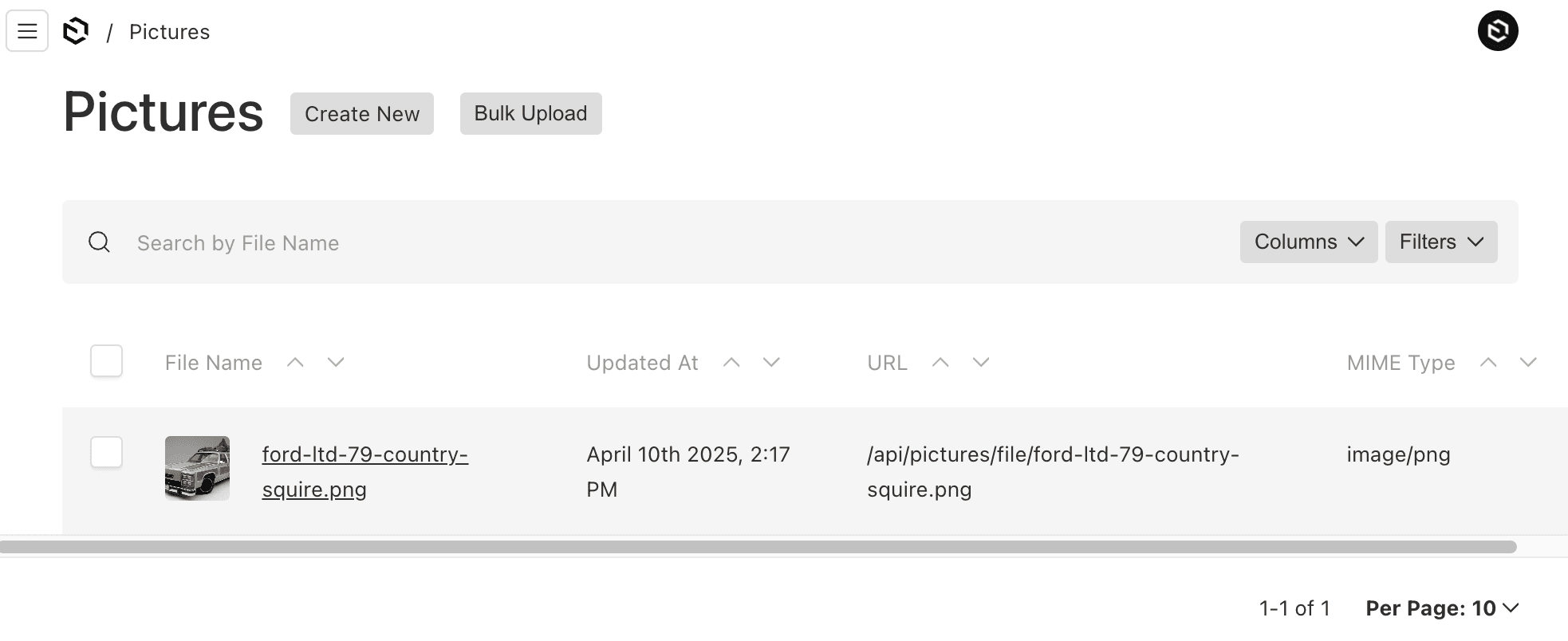
I'll define some Collections to simulate an online used cars website that let's users upload images of cars they are selling.
For example:
- Pictures: The media enabled Collection.
- : The Collection to add car details and images that will point to the media destination.